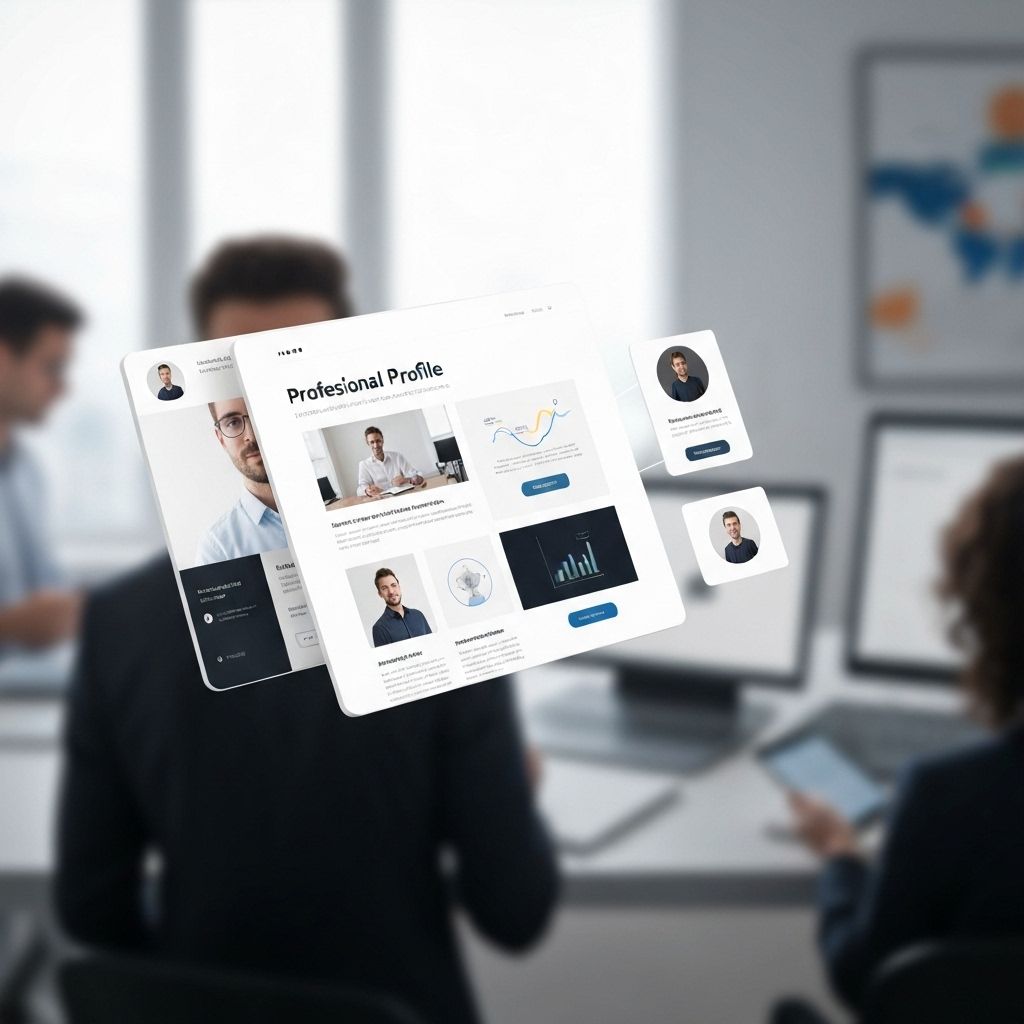
Mastering Video Call Presence: Beyond Just Having a Good Background
The New Normal: Video as Your Primary Professional Medium
In 2025, the average professional spends 12+ hours per week on video calls. Your video presence is now as important as your in-person presence once was. Yet most professionals focus only on backgrounds while neglecting lighting, framing, audio, and presentation skills.
The Complete Video Presence Framework
1. Lighting: The Most Important Factor
Poor lighting can make you look unprepared, tired, or unprofessional:
- Key light positioning: Primary light source in front of you at 45-degree angle
- Height matters: Light should be at or slightly above eye level
- Avoid backlighting: Never sit with a bright window behind you
- Ring lights: $30-$100 investment that dramatically improves appearance
- Natural light: Face a window for soft, flattering illumination
- Avoid overhead lighting: Creates unflattering shadows under eyes and nose
2. Camera Position and Framing
Proper camera positioning conveys professionalism and engagement:
- Eye level: Camera at or slightly above eye level (never below)
- Distance: Arm's length away from camera
- Framing: Head and shoulders visible, slight space above head
- Eye line: Look at camera, not your own image
- Stability: Use laptop stand or external webcam mount (no wobbling)
3. Audio Quality (Often More Important Than Video)
Poor audio is more distracting than poor video:
- External microphone: $50-$150 significantly improves clarity
- Headset option: Reduces echo and background noise
- Noise cancellation: Enable software noise suppression
- Room acoustics: Soft furnishings reduce echo
- Microphone testing: Check levels before important calls
- Mute when not speaking: Professional courtesy in group calls
4. Background Strategy
Your background communicates professionalism and context:
- Clean and uncluttered: Remove distracting items
- Depth preferred: Some distance between you and wall prevents flat appearance
- Professional context: Bookshelf, office setting, neutral wall
- Virtual backgrounds: Use sparingly, can look unprofessional with artifacts
- Blur option: Better than messy real background, less distracting than fake backgrounds
- Consistency: Use same background for brand recognition
The Professional Video Call Setup
Equipment Investment Tiers:
Budget Setup ($100-$200):
- Laptop stand ($20-$40)
- Ring light with tripod ($30-$60)
- USB microphone ($40-$80)
- Background organization (free)
Professional Setup ($300-$600):
- External webcam 1080p+ ($100-$200)
- Key light + fill light ($100-$200)
- Quality USB or XLR microphone ($100-$200)
- Backdrop or green screen ($30-$100)
Premium Setup ($800-$1,500+):
- 4K webcam or DSLR camera with capture card ($400-$800)
- Professional lighting kit ($200-$400)
- Studio-quality microphone with audio interface ($200-$500)
- Teleprompter for presentations ($100-$300)
Presentation Skills for Video
Body Language on Camera:
- Posture: Sit up straight, lean slightly forward to show engagement
- Hand gestures: Keep within frame, use natural gestures
- Eye contact: Look at camera lens, not your own image
- Facial expressions: Slightly exaggerate to compensate for video compression
- Nodding: Visible agreement and active listening
- Minimize movement: Avoid fidgeting, chair spinning, excessive swaying
Virtual Meeting Etiquette:
- Arrive early: Join 2-3 minutes before start time
- Test technology: Verify audio/video before important meetings
- Professional attire: Dress as you would for in-person meetings
- Minimize distractions: Close unnecessary apps, silence notifications
- Active participation: Unmute to speak, contribute regularly
- Screen sharing etiquette: Close personal tabs, prepare materials in advance
Platform-Specific Optimization
Zoom:
- Enable "Touch up my appearance" (subtle smoothing filter)
- Use "Adjust for low light" in dark environments
- Optimize virtual background with green screen
- Custom gallery view ordering (pin important participants)
Microsoft Teams:
- Background blur or custom backgrounds
- Together mode for collaborative feel
- Live reactions for engagement
- Optimize bandwidth settings for connection quality
Google Meet:
- Enable "Adjust video for low light"
- Use background blur
- Enable noise cancellation
- Optimize layout for presentation or discussion
Context-Specific Video Presence
Job Interviews:
- Attire: Full business professional (not just from waist up)
- Background: Neutral, clean, professional
- Lighting: Perfect—this is your first impression
- Notes: Keep reference notes nearby (but don't read from them)
- Backup plan: Have phone ready as backup device
Sales Calls:
- Energy level: Higher energy than in-person to compensate for screen
- Screen sharing: Professional, well-designed presentations
- Engagement tools: Use polls, annotations, virtual whiteboard
- Recording: Request permission, provide value through recording
Executive Presentations:
- Premium setup: Invest in best possible equipment
- Rehearsal: Practice with exact setup you'll use
- Backup equipment: Redundant audio and video sources
- Technical support: Have IT support on standby
Team Meetings:
- Camera on: Build connection and engagement
- Active listening: Visible reactions and engagement
- Contribution: Regular participation, even if brief
- Respect others: Don't multitask visibly
Advanced Video Presence Techniques
Virtual Backgrounds Done Right:
- Consistency: Use branded background matching company style
- Simplicity: Avoid busy, distracting images
- Green screen: Invest in green screen for clean edges
- Lighting match: Background lighting should match your lighting
- Testing: Preview how you look with various backgrounds
Multi-Camera Setup:
- Primary camera for face
- Secondary camera for demonstrations or product shows
- Overhead camera for document sharing
- Switch between angles for dynamic presentations
Professional Video Profiles:
- Record 30-second professional introduction video
- Use for email signatures, LinkedIn profile
- Consistent setup with your live video calls
- Update quarterly to stay current
Common Video Call Mistakes and Fixes
Mistake: Looking down at laptop screen
- Fix: Elevate laptop or use external webcam at eye level
Mistake: Sitting too close or too far from camera
- Fix: Arm's length distance, adjust based on preview
Mistake: Forgetting camera is on
- Fix: Add camera indicator sticker, stay professional always
Mistake: Poor internet connection
- Fix: Wired ethernet connection, close bandwidth-heavy apps
Mistake: Multitasking during calls
- Fix: Close distracting apps, take notes visibly
The ROI of Video Presence Investment
Professionals with optimized video setups report:
- Increased credibility: 67% more likely to be perceived as prepared and professional
- Better engagement: 2.3x more engagement in virtual presentations
- Career advancement: 41% correlation between video presence and promotion rates
- Sales success: 34% higher virtual sales conversion rates
- Interview success: 2.8x more likely to advance past virtual interviews
Your Video Presence is Your Professional Presence
In the remote and hybrid work era, video calls are not a temporary solution—they're the permanent new normal. Investing in your video presence is investing in your career. From lighting to framing, audio to engagement, every element contributes to how others perceive your professionalism, competence, and leadership. Master your video presence, and you master modern professional communication.
Tags
Related Articles

AI Headshots: The Future of Professional Photography
Discover how artificial intelligence is revolutionizing professional photography and making high-quality headshots accessible to everyone.
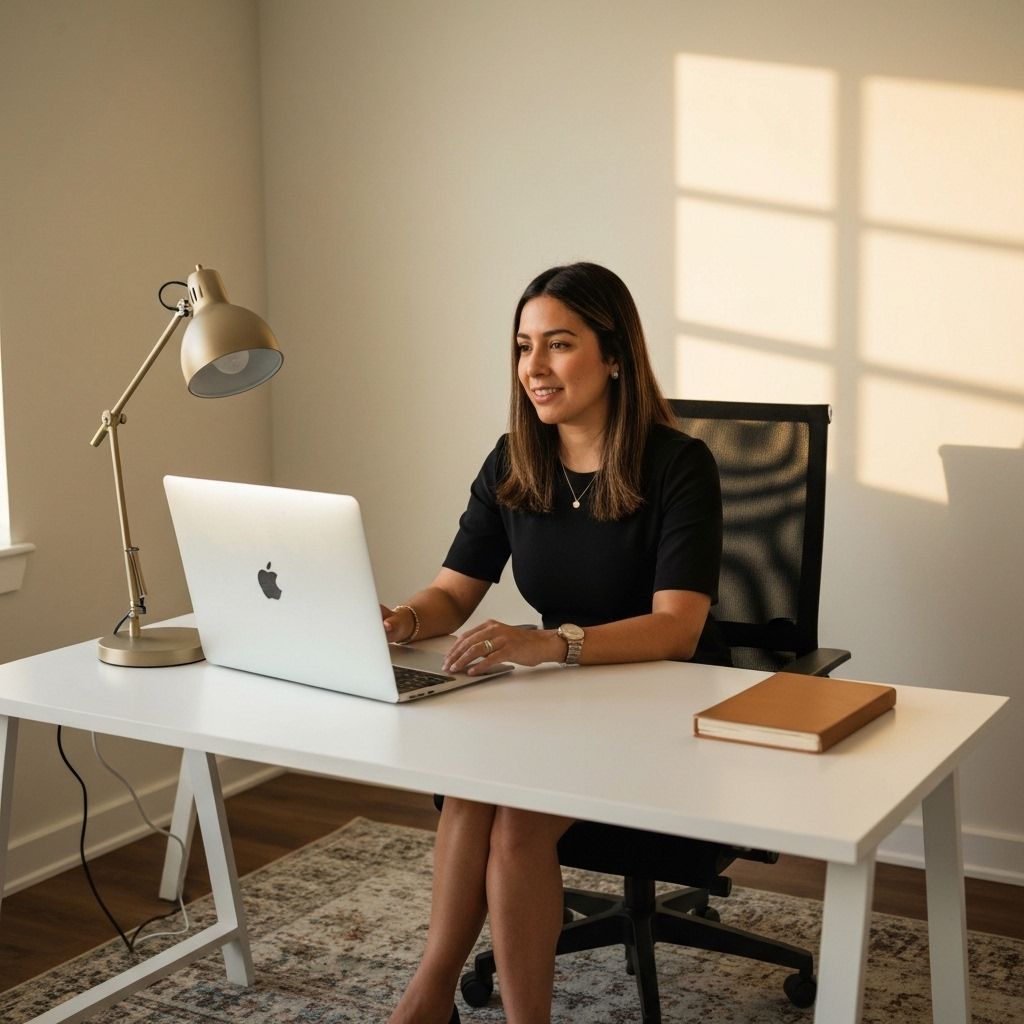
Maintaining Professional Image in the Remote Work Era
Learn how to project confidence and professionalism in virtual meetings and online interactions while working remotely.

Personal Branding for Introverts: Building Your Professional Image Without Draining Your Energy
Discover how introverted professionals can build powerful personal brands and maintain strong professional images while honoring their natural communication style.